If you’re an IT provider or tech entrepreneur in Ghana looking to expand your service portfolio, becoming an Acronis Cloud Reseller can open new revenue streams through data protection and backup solutions. This guide walks you through the exact steps to set up your Acronis Cloud Reseller account—no guesswork, just a straightforward setup process designed to get you started quickly and efficiently.
Creating plans in your cloud management panel
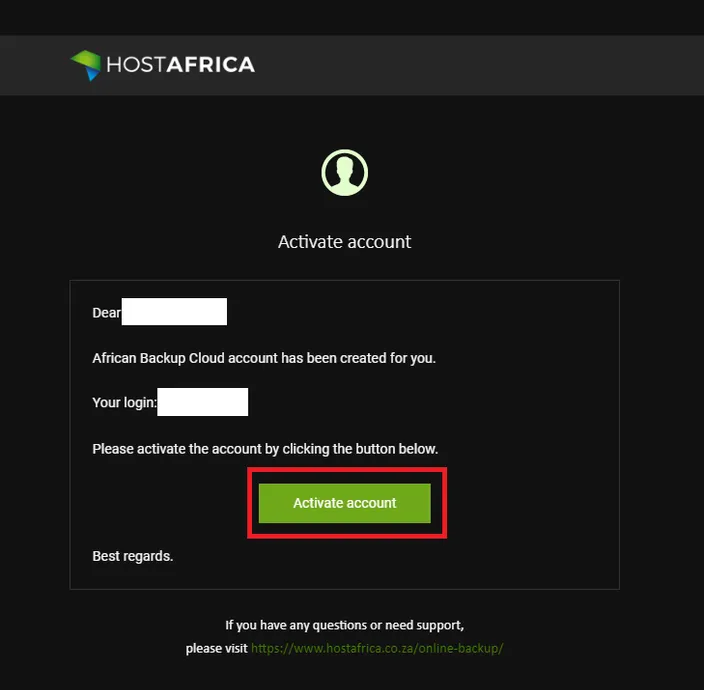
1. Once you have completed your Acronis Backup order via our website or your client area, log in to your registered email account and open the mail from backup@hostafrica.com then click on “Activate account”. This'll redirect you to the Acronis Management Page where you will set up a password upon your first login.
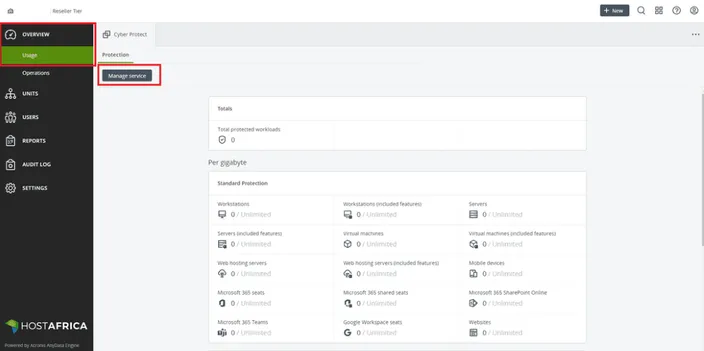
2. Once your account has been activated and you've logged into your Cloud Management Panel, navigate to Overview and Usage and click on "Manage Service".
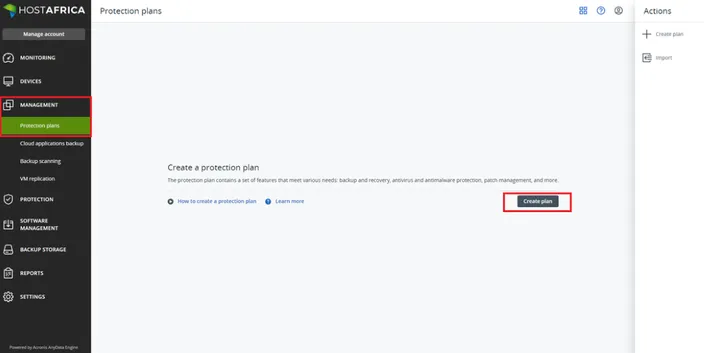
3. Next you need to navigate to Management and Protection Plans then click on "Create Plan"
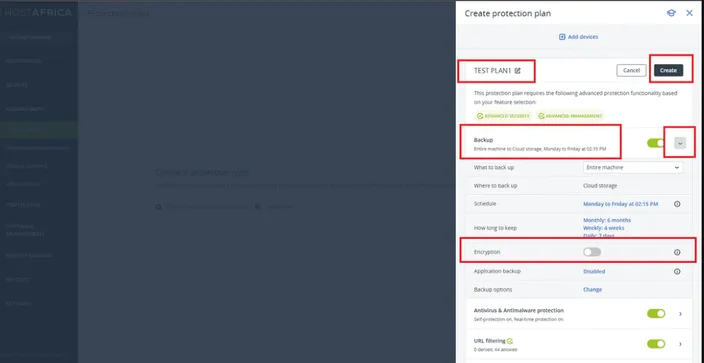
4. Give your plan a name then click on then disable Encryption. Enable/disable the rest of the options for the plan you're creating then click on "Create" at the top.
5. Download the recovery ISO image and keep it stored on an external device.
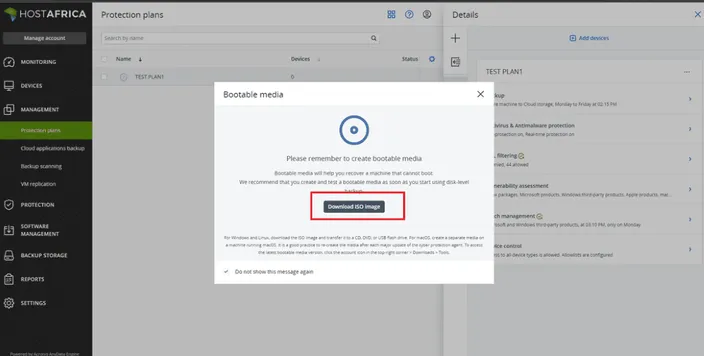
6. Create additional plans as needed then navigate to Devices and Unmanaged machines and click on "Show all options".
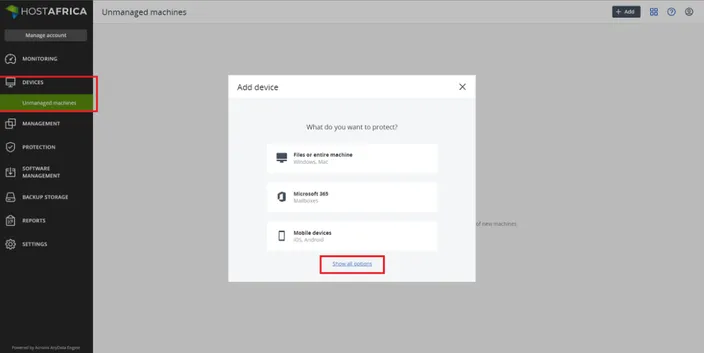
7. Select the OS or Platform where you want to install the backup agent.
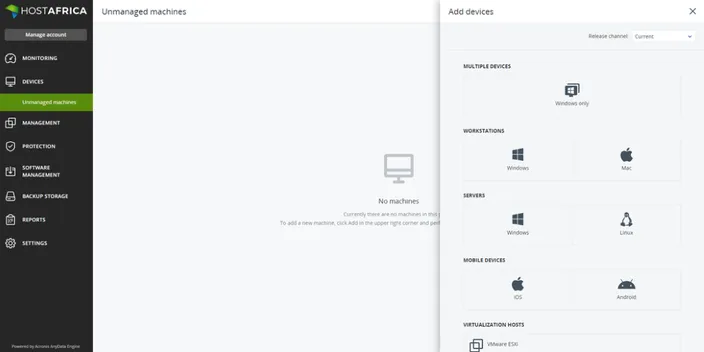
8. Check out our Acronis installation guide for instructions to set up the backup agent on your device of choice.
Adding additional storage locations
As a reseller, you're able to add additional storage locations of your choice. To do so, log into your Reseller account then navigate to Settings and Locations.
Click on "Add Backup Storage" to download the ISO which you will need to load on the destination VM/Server to add it as a storage location:
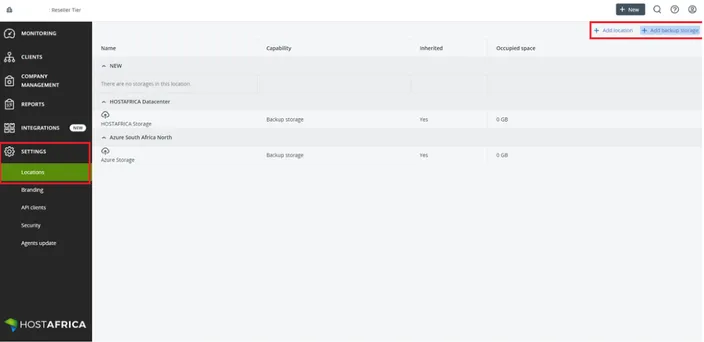
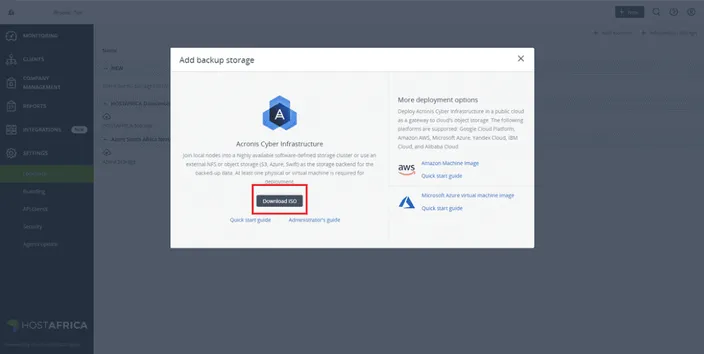
Once the ISO has been installed on your storage server, it will appear in your Acronis Cloud Panel, where you can select it as an additional location.
If you're looking to expand your knowledge on using Acronis, check out the Quick Start Guide and the Administrators Guide by Acronis.
Couple of clicks here, a username there, and we're all done. Your Acronis Cloud Reseller is set up. Now all you have to do is find people to back up. Which should be easy enough. Everyone's trying to be a hero, whilst we do have a shortage of backups.