Looking to secure your data with Acronis Cloud Backup? Whether you’re running a business in Accra or managing remote servers across Ghana, having reliable cloud-based backups is essential. Acronis offers a powerful, user-friendly solution that supports Windows, Ubuntu, CentOS, and more. In this guide, we’ll walk you through the full installation process—from activating your account to registering your device—so you can start protecting your data with confidence.
Setting up your Acronis Backup Management Console
Once you've completed your Acronis Backup Order via our website, check your email for the account activation mail from backup@hostafrica.com. Click on the “Activate account” button which'll redirect you to the Acronis Backup Management Console where you will set up a password upon your first login.
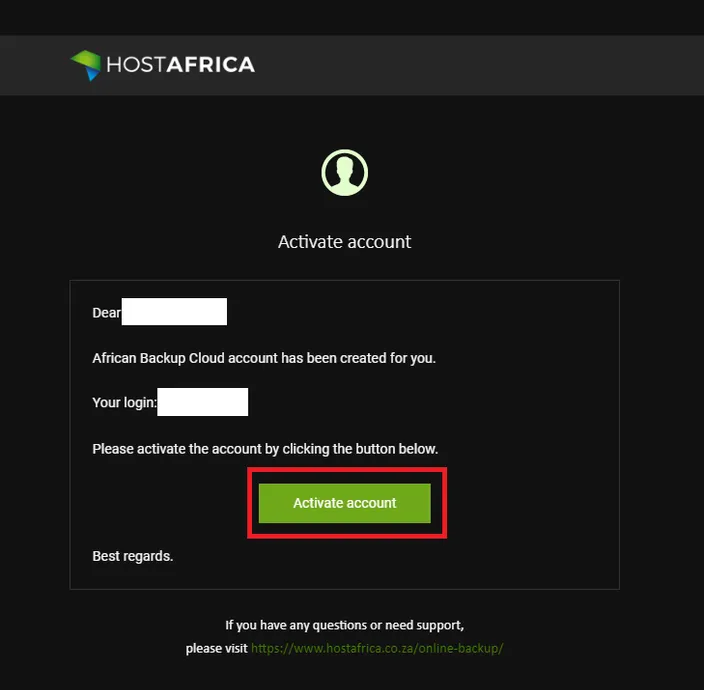
Next, follow the installation instructions below for the device/operating system of your choice.
Installing Acronis PC/Server Cloud Backup on Windows
1. Next, you'll need to click on the "Add Devices" button and select your device or platform of choice on the right-hand side of your screen.
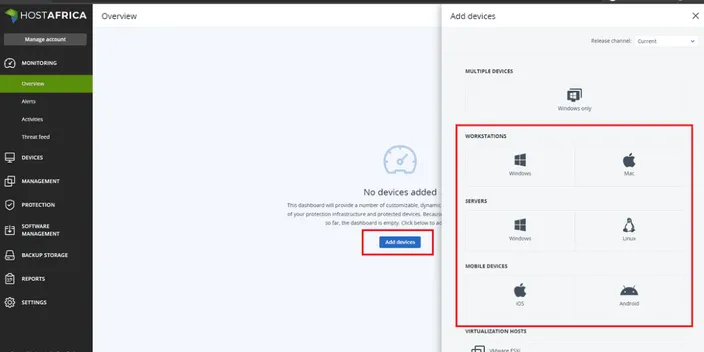
2. Once you've selected your operating system/platform the agent installer will automatically download and you can click on it to start the installation process.
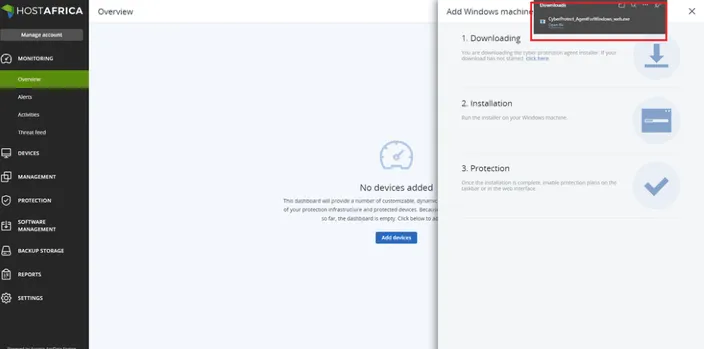
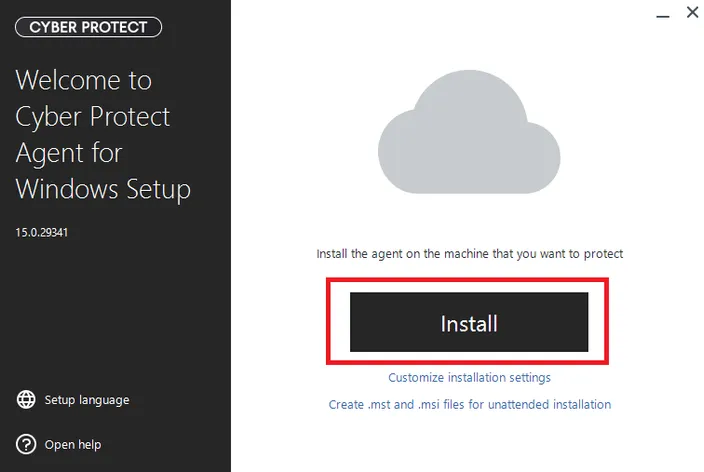
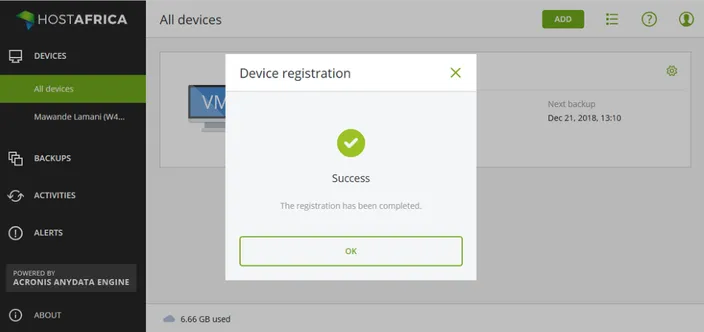
3. After the installation has been completed, click on “Register Machine”. This'll redirect you to the Cloud Management Console where you will need to "Confirm Registration".
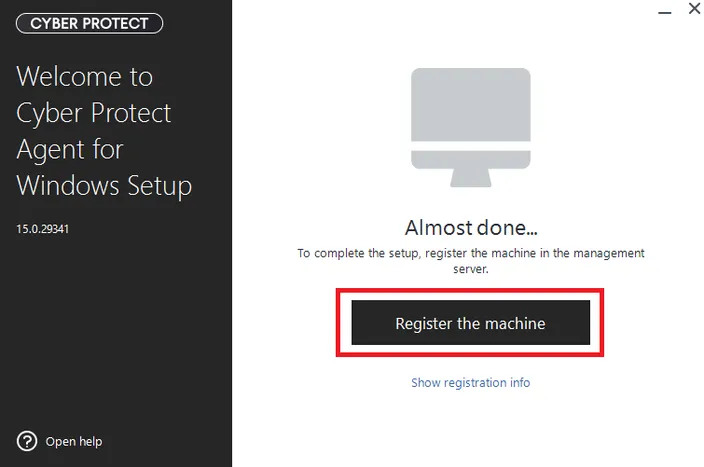
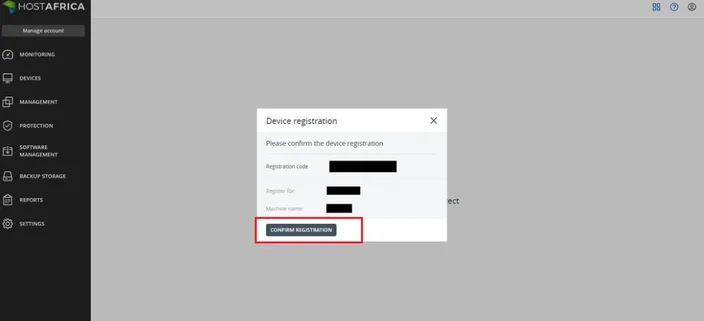
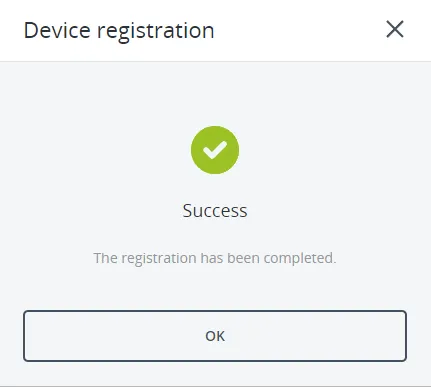
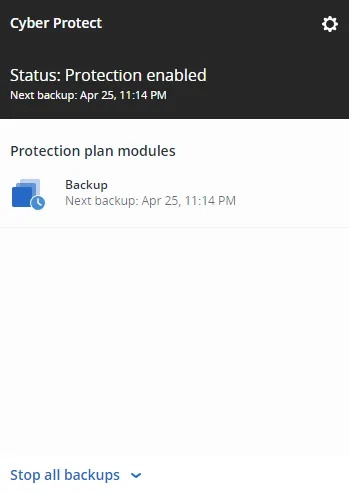
4. In Windows, click on the Acronis Icon in the bottom right of your screen (in your taskbar) then click "Apply Default Protection Plan".
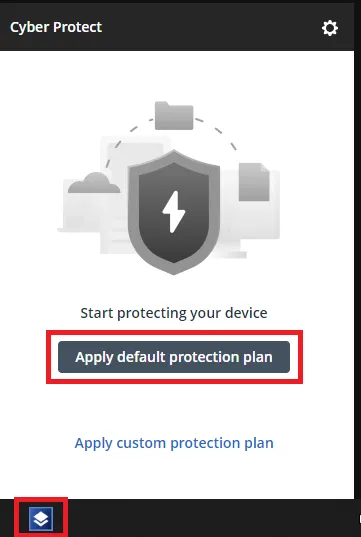
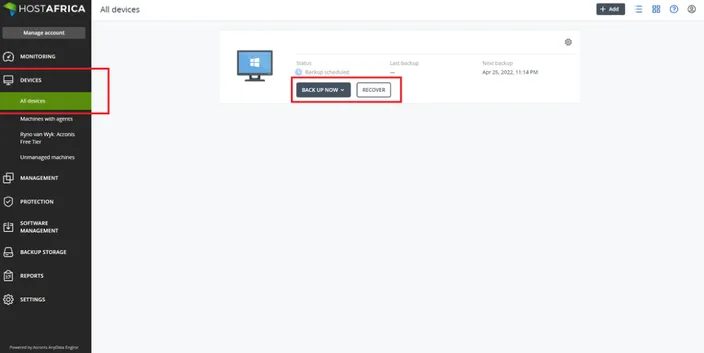
5. Your device is now protected. You will now be able to view and restore backups via the Acronis Backup Management Console.
Installing Acronis PC/Server Cloud Backup on Ubuntu
1. Download the Acronis Agent for Linux installer directly via terminal using the following command:
sudo wget https://dl.managed-protection.com/u/baas/4.0/12.0.3957/Backup_Agent_for_Linux_x86_64.bin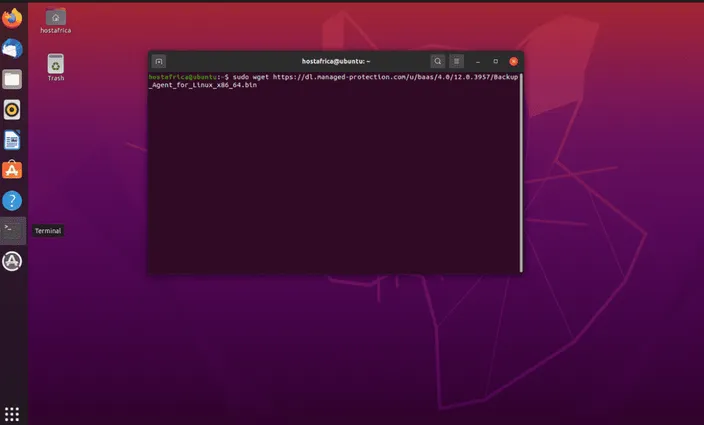
2. Once downloaded, grant the necessary permissions to run the installer:
sudo chmod 755 Backup_Agent_for_Linux_x86_64.bin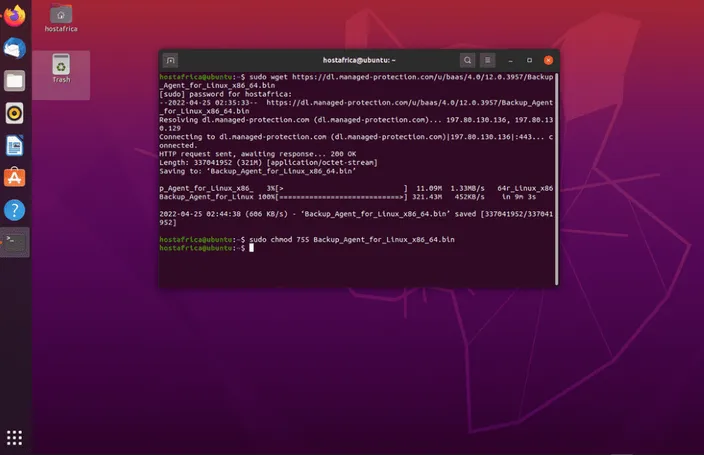
3. Next, install rpm:
sudo apt-get install rpm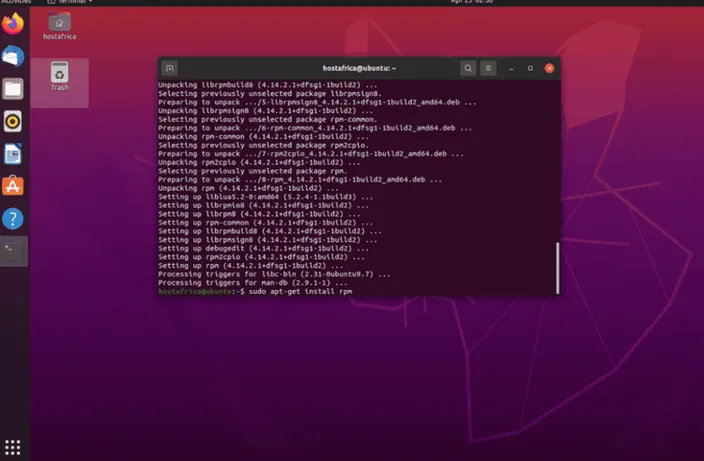
4. Then download updates:
sudo apt-get update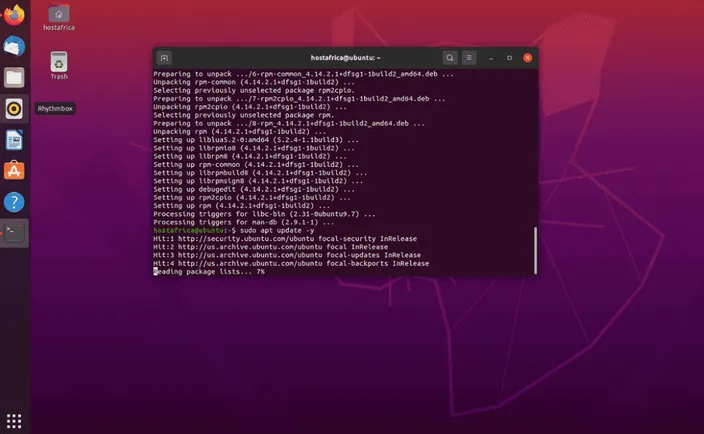
5. Launch the installer as root and enter your Acronis Cloud login details:
sudo ./Backup_Agent_for_Linux_x86_64.bin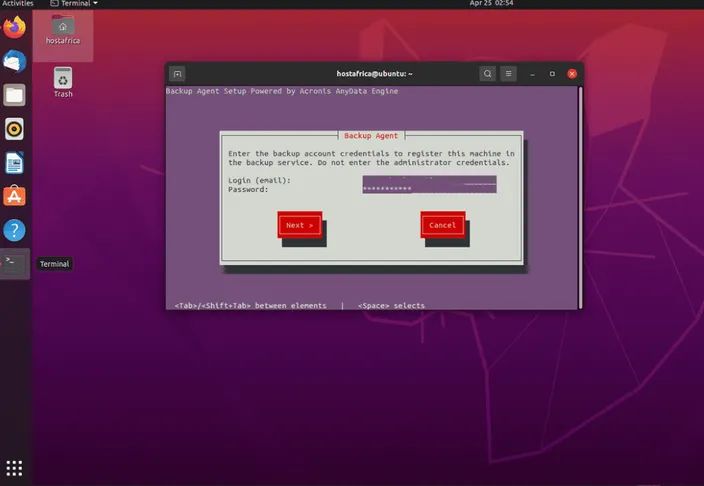
6. If you see the following message you will need to install GCC manually:
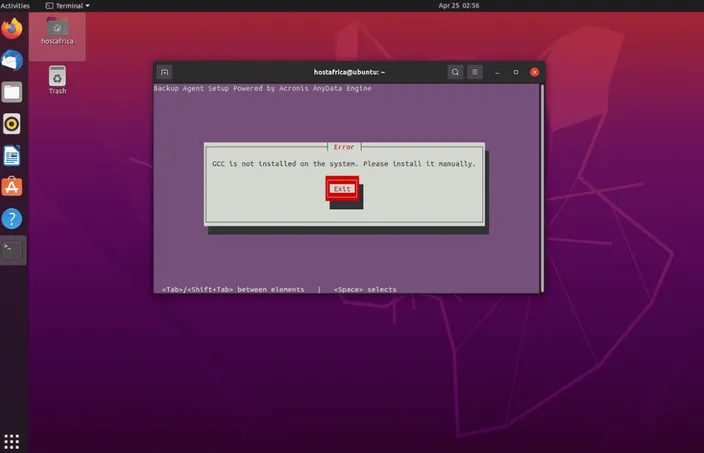
To install GCC manually, run the following commands:
sudo apt-get update

sudo apt-get install linux-headers-`uname -r`

sudo apt-get install linux-image-`uname -r`

sudo apt-get install gcc-<package version>

sudo apt-get install make

sudo apt-get install perl

sudo ./Backup_Agent_for_Linux_x86_64.bin

/usr/lib/Acronis/BackupAndRecovery/AmsRegisterHelper register https://cloud.acronis.com/ <USERNAME> <PASSWORD>
7. Once the setup has been completed the device will be available in the Acronis Backup Management Console and you can start backing up your data:
Installing Acronis PC/Server Cloud Backup on CentOS
Prerequisites
Before starting, there are a few packages and prerequisites that are needed to add the Acronis Backup modules to the Linux kernel. These include:
- Package for building kernel modules. The package version must match the kernel version.
- GNU Compiler Collection (GCC) compiler system. GCC version must be the one with which the kernel was compiled.
- Make tool.
Follow the below steps to check whether the required packages are already installed.
-
Run the following command to check the kernel and required GCC versions: cat/proc/version
-
Then run the following commands to check whether you have the Make tool and GCC compiler installed:
make -v
gcc –v
Note: Compare the version of GCC with information fromcat /proc/versioncommand -
Check whether the appropriate packages for building kernel modules have been installed:
- In Red Hat Enterprise Linux, CentOS, and Fedora, run the following command:
yum list installed | grep kernel-devel - In Ubuntu, run the following commands:
dpkg --get-selections | grep linux-headers
dpkg --get-selections | grep linux-image
Ensure that these package versions are the same as required in step 1.
- In Red Hat Enterprise Linux, CentOS, and Fedora, run the following command:
-
Ensure that RPM Package Manager (RPM) is installed in your system. If it isn't, you may need to install RPM manually by running one of the following commands (depending on your system):
sudo yum install rpm(Red Hat based distributions)
sudo apt-get install rpm(Debian based distributions)
The following table lists how to install the required packages in various Linux distributions.
| Linux distribution | Package names | How to install |
|---|---|---|
| Red Hat Enterprise Linux | kernel-devel gcc make |
The setup program will download and install the packages automatically by using your Red Hat subscription. |
| CentOS | kernel-devel gcc make |
The setup program will download and install the packages automatically. |
| Fedora | kernel-devel gcc make |
Run the following commands as the root user (specify the required GCC version in the GCC package name):yum install kernel- devel-` uname -r`yum install gcc-4.5.1yum install make |
| Ubuntu | linux -headers linux -image gcc make |
Run the following commands (specify the required GCC version in the GCC package name):sudo apt-get update sudo apt-get install linux -headers-`uname -r` sudo apt-get install linux -image-`uname -r` sudo apt-get install gcc-4.6 sudo apt-get install make |
Source Acronis Knowledgebase
Installation procedure
Now that you've checked the prerequisites, it's time to do the actual installation.
- First, log in as the root user.
- Then download and launch the installation package. This package is downloaded as a binary file and will need to be converted to an executable in order to launch it. To do this:
- open terminal;
- and navigate to the folder where the installation package is saved;
- then run the following command to make this an executable:
chmod +x Backup_Agent_for_Linux_x86_64.binorchmod 755 filename.bin - finally, run the file using:
./Backup_Agent_for_Linux_x86_64.bin
- Follow the prompts which include accepting the terms and specifying your credentials in order to complete the setup.
- Once the setup has been completed the computer will be available in Backup Management Console and you can start backing up your data:
Possible password error
If your password contains special characters, you may encounter or receive a similar error while providing correct credentials:
Register",
"module" : 0,
"suberror" : null,
"text" : "Getting refresh token failed: {\"error\":\"access_denied\",\"error_description\":\"Failed to authorize\"}" },
"reason" : "internalError",
"serCode" : "0x00000191"
This can be fixed by entering the following command:
./RegisterAgentBin -o register -t cloud -a https://cloud.acronis.com -u <username> -p <encoded password> --base64Pretty simple, 'ey? Nothing our expertise and your inputs can't fix or get installed. Now that you've backed up, you've got one less thing to worry about and another 99 more to take care of. Good luck!
If you're a reseller, keep an eye out for our next post where we'll go over the account setup as well as the steps to add additional storage locations.